Configuring eM Client
When configuring an IMAP account with eM Client, please follow these instructions:
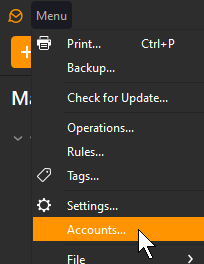
- Select Menu > Accounts
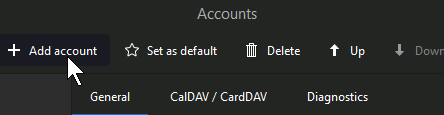
- Select Add account
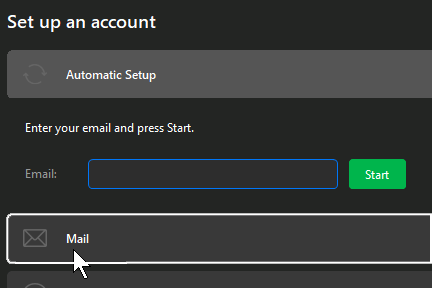
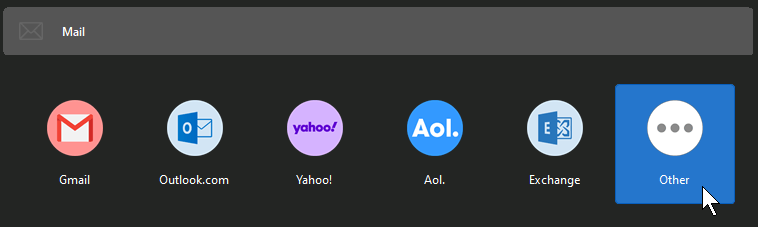
- Select Mail instead of Automatic Setup
- Select Other
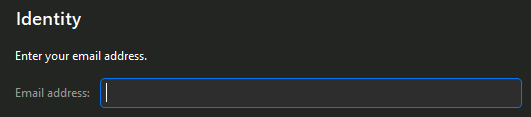
- Enter Email address
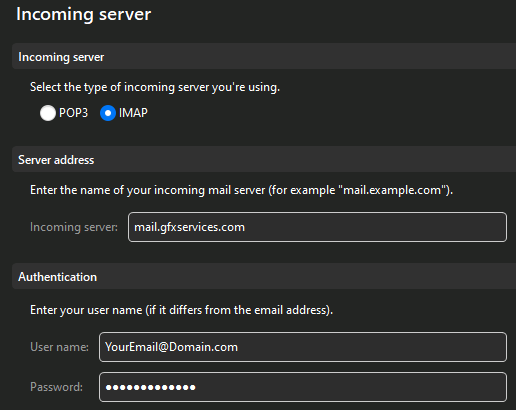
- Select IMAP and enter mail.gfxservices.com in the Incoming server field. Enter your email address and password.
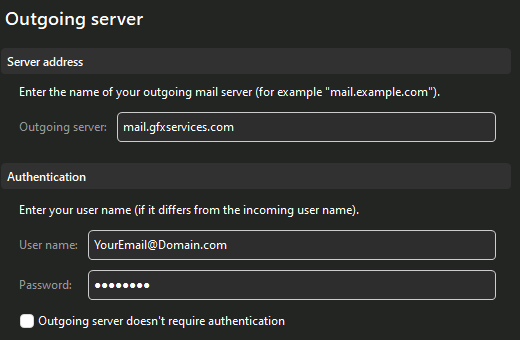
- For the Outgoing server, enter mail.gfxservices.com. Enter your email address and password.
- On the next screen, if it fails the test results, select Ignore test results and proceed.

- Unless you prefer to setup encryption keys, you may select Continue without encryption

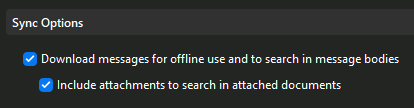
- Enable both Sync options
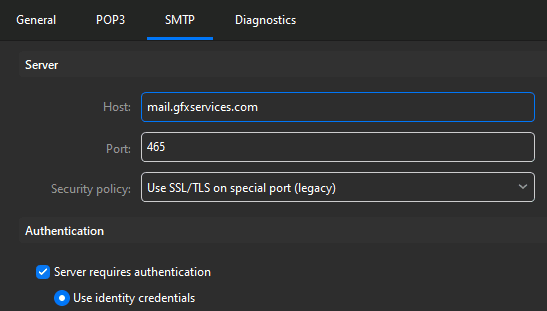
- Once you have completed the account setup, go to the SMTP tab. You can gain access to this under Menu > Accounts, select the newly created email account and select SMTP